What is Portal Monitor?
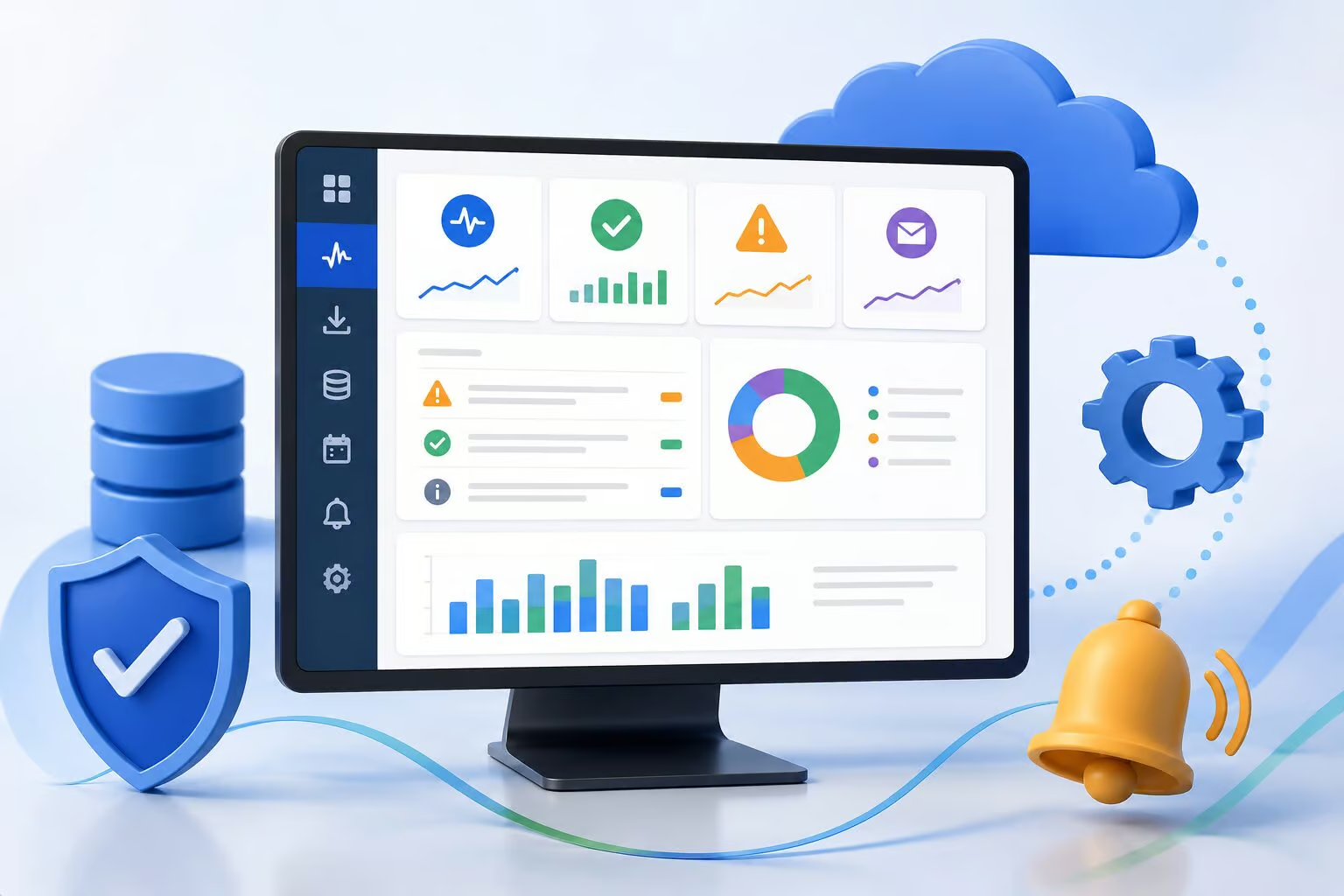
Portal Monitor is a new capability available under the Management section of the CYS portal. It brings centralised monitoring, configurable alerts, and automated notifications together in one place — giving administrators the visibility they need to stay ahead of process failures rather than react to them.
With Portal Monitor, you no longer need to manually check whether your imports are running, your schedulers are firing, or your mapping processes are producing results. You define what matters, set the conditions that should trigger attention, and let the system tell you when something needs to be looked at.
What you can monitor
Portal Monitor covers four key areas of automated processing:
1. Import Source Monitoring
Track import activity across all your sources, including records processed, success and failure counts, batch information, and overall runtime. If an import stops producing records or starts throwing exceptions, you will know before it becomes a problem.
2. File Source Monitoring (SFTP Connectors)
Monitor when connector processes run and whether incoming files are being detected. Track file volumes, record counts within files, runtime information, and connector execution details — so you always know whether expected data is arriving.
3. Project Mapping Monitoring
Gain visibility into how source data is being mapped into your project databases. Track processing outcomes across mapping runs and detect mapping exceptions or failures early, before they affect downstream data quality.
4. Scheduler Monitoring
Monitor survey scheduler activity end to end — including invitations sent, reminders sent, excluded recipients, and blacklisted contacts. If a scheduler hasn’t fired or is sending fewer invites than expected, Portal Monitor gives you the signal to investigate.
Configurable alerts built around your operations
Portal Monitor does not apply a one-size-fits-all approach to alerting. You configure alerts based on your own operational thresholds and the specific processes that matter most to your organisation.
For each monitored area, you can choose between a default trigger — which fires on exceptions and inactivity within the last 24 hours — or a custom trigger that gives you precise control over conditions such as:
- No records processed within a defined number of days
- Record counts that fall outside an expected range
- A scheduler that has not run within a set timeframe
- Invitation or reminder volumes that fall above or below configured thresholds
- Exception counts that exceed a defined limit
Alerts can be given a name, a start date, and an optional end date, and can be toggled on or off at any time. Each alert also includes a configurable notification message — subject line and body — so that the people receiving the notification have the context they need to act immediately.
Getting started in four steps
Setting up Portal Monitor is straightforward. Navigate to Portal Monitor under Management and follow these steps:
Step 1 — Identify your critical processes. Decide which imports, connectors, schedulers, or mappings are business-critical and should be monitored first.
Step 2 — Configure your alerts. Create alerts for the scenarios that would require operational attention — imports not running, scheduler inactivity, mapping failures, or unexpected processing behaviour.
Step 3 — Set up notifications. Assign recipients for each alert. Notifications can be delivered as in-portal notifications to named portal users, email alerts to portal user addresses, or emails to external recipients outside the platform.
Step 4 — Monitor from the overview. Use the Portal Monitor overview to review recent alerts, recent process activity, triggered notifications, and operational trends across your configured processes.
Notifications that reach the right people
Each alert can be configured with one or more recipients, and recipient types can be mixed within the same alert. A critical import failure, for example, could notify a portal administrator via in-portal notification and simultaneously send an email to an external operations team.
Notification messages are fully editable — the subject and body can be tailored to each alert so recipients immediately understand what has been detected and where to look.
The first step toward full operational visibility
Portal Monitor is available now through the Management section of the portal. No changes to your existing processes are required to begin monitoring — simply configure your alerts and start gaining visibility.
This release represents the first step toward centralised operational visibility within the CYS platform. As more processes become monitorable and alerting capabilities expand, Portal Monitor will grow into the single place where administrators can be confident that everything critical is running as it should.
Because in research operations, the failures you never see are often the ones that matter most.